
How to Link TV to Sky Remote – Easy Step-by-Step Guide (UK)
A Sky remote is the handy controller that comes with your Sky TV service. It’s used to change channels, use the TV guide, and more. But did you know you can also link it to your television itself? This guide will show you how to link your TV to a Sky remote.


With more than 12 years of hands-on experience in satellite television, Freeview systems, and UK broadcast technology, Daniel focuses on helping users choose the right satellite receivers, tune Freeview channels, and solve common signal and setup issues across the UK.
 Add as a preferred source on Google
Linking means your Sky remote can also control your TV’s basic functions. Once linked, you can use one remote for everything. You can turn your TV and Sky box on or off together, adjust the volume, and press the mute button. This stops you from needing two remotes on your sofa!
In the UK, you might have a Sky Q box, an older Sky+ box, or even a Sky Glass TV. The process is similar for most modern Sky Q and Sky+ remotes. Sky Glass has its own, simpler setup. Don’t worry if this sounds technical. The process is quick and very beginner-friendly. Let’s get your remotes linked together.
What Does “Linking a Sky Remote to a TV” Mean?
Linking a Sky remote to your TV is sometimes called “pairing” or “programming.” It’s a simple setup that teaches your Sky remote how to talk to your specific television.
Think of it like giving your Sky remote a secret code that only your TV brand understands. Once it knows this code, it can send commands that your TV will obey. After linking, three main buttons on your Sky remote will control your TV: the Volume buttons, the Power (on/off) button, and the Mute button.
If these buttons are not linked correctly, they won’t do anything. You might press the volume up button, but the sound won’t change. This is because the remote is sending signals your TV doesn’t recognise. Linking fixes this. It makes one remote do the job of two, making your viewing much simpler.
Types of Sky Remotes Used in the UK
There are a few different Sky remotes in UK homes. The steps to link them vary slightly, so it’s good to know which one you have.
3.1 Sky Q Touch Remote
This is a common remote for Sky Q boxes. You can spot it by the large, black touchpad at the top. You swipe this pad to move through menus. To link this remote to your TV, you usually use the on-screen menus on your Sky Q box. It’s a very straightforward process that we will cover in the guide.
3.2 Sky Q Voice Remote
This remote looks similar to the Touch remote but has a blue button with a microphone on it. This lets you use your voice to search for shows. This remote uses both Infrared (IR) and Bluetooth. IR is the classic flashing light that needs a clear path to your devices. Bluetooth works through walls, which is better for the Sky box. For linking to your TV, we use the IR signal.
3.3 Older Sky+ / Sky HD Remotes
Many households still use these older, slimmer remotes. They don’t have a touchpad or voice control. They work with Sky+ or Sky HD boxes. The linking process for these often involves entering a manual code, which is also a very easy method.
Things to Check Before Linking Your TV to a Sky Remote
Before you start, check these four things for a smooth setup. First, make sure your Sky box is plugged in and powered on. You need the TV screen to show the Sky menu. Second, know your TV brand (like Samsung, LG, or Sony). You will need to select this brand during setup.
Third, put fresh batteries in your Sky remote. Weak batteries can cause problems. Fourth, check that nothing is blocking the small, red IR sensor on your Sky remote or on your TV. The remote needs a clear path to send its signal to the TV.
How to Link TV to Sky Remote (Step-by-Step Guide)
Follow these steps to link your remote. The best method depends on the type of remote you have.
5.1 Using Sky Q Remote (Automatic Method)
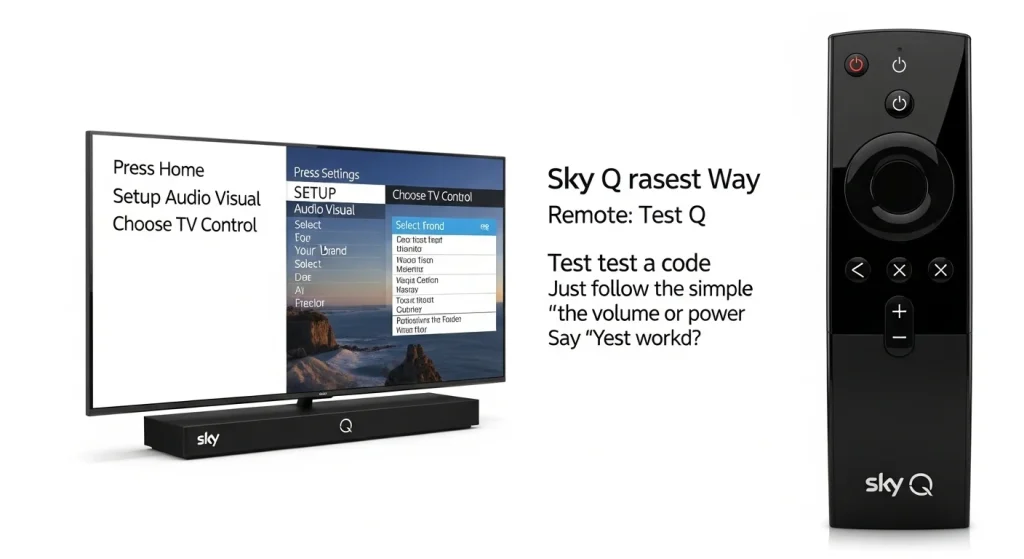
This is the easiest way for Sky Q customers. Turn on your TV and Sky Q box. Press the Home button on your Sky Q remote. Go to Settings. Select Setup and then Audio Visual. Choose TV Control. The system will ask for your TV brand. Select it from the list. Your Sky Q remote will then test a code. Just follow the simple on-screen instructions. Say “Yes” when it asks if the volume or power test worked.
5.2 Manual Method Using TV Codes
Use this method if the automatic one doesn’t find your TV or if you have an older Sky+ remote. Turn your TV on. Press and hold the TV button on your Sky remote until the red light flashes twice. Type in the 4-digit code for your TV brand (you can find Sky’s code list online). Press the Standby (power) button once. The red light should flash twice. Now, point the remote at your TV and press the TV button. Try using the volume button. If your TV volume changes, it worked! Press Select to save the code.
How to Link Sky Remote to Popular TV Brands (UK-Focused)
The automatic method usually works for most big TV brands sold in the UK. Here’s what to know for some popular ones.
6.1 Samsung TV
Samsung TVs are very common. The Sky Q automatic setup detects most Samsung models easily. For older Samsung TVs, you might need to use the manual code method with code 0206.
6.2 LG TV
LG TVs also link well with the automatic setup. If you need a manual code for an older LG TV, try using code 0200.
6.3 Sony TV
Sony TVs are well recognised by Sky remotes. The automatic process is usually successful. A common manual code for Sony is 0000.
6.4 Philips TV
For Philips TVs, the automatic detection is reliable. If linking manually, you can try code 0550.
6.5 Hisense / Bush / JVC TVs
These brands are also supported. The automatic setup will often find them. If not, you can search online for “Sky remote code” followed by your specific TV brand and model number.
How to Link Sky Remote Without a TV Code
Don’t worry if you don’t know your TV code. The Sky Q remote has a handy auto-search feature. In the TV Control menu, select “My TV brand isn’t listed” or a similar option. The remote will then cycle through hundreds of codes. It will stop and ask you to test the volume after each one. When the volume on your TV changes, tell the setup “Yes.” This saves the correct code for you. If it doesn’t work the first time, just try the auto-search again.
Sky Remote Not Linking to TV – Common Problems & Fixes
If your remote isn’t working, try these simple fixes. If the volume buttons do nothing, the remote isn’t linked. Go back to the setup steps. If the power button doesn’t work, the TV code might be wrong. Try the setup again with a different code. If the remote flashes red many times, the batteries could be weak. Replace them with new ones.
Selecting the wrong TV brand is a common mistake. Double-check you picked the right brand name. Finally, interference can cause issues. Make sure there’s a clear path between your remote and the TV’s sensor. Also, strong sunlight shining on the TV sensor can block the signal.
Can You Link a Sky Remote to More Than One TV?
You can only link one Sky remote to control one TV at a time. The remote remembers the code for that specific television. If you want to use the same remote with a different TV in another room, you will need to re-link it. Just follow the linking steps again for the new TV. The remote will forget the old TV and learn the new one’s code.
FAQs – How to Link TV to Sky Remote
How do I reset my Sky remote?
To reset a Sky Q remote, hold down the 1 and 3 buttons together for about five seconds until the light flashes. For older remotes, remove the batteries, press every button once, then put fresh batteries back in.
Why won’t my Sky remote control the TV volume?
This usually means the remote is not linked to your TV. You need to complete the TV linking setup so the remote learns your TV’s code.
Does Sky Glass need a separate remote setup?
No. Sky Glass is a TV and Sky box in one. Its remote is already programmed to control everything, so no linking is needed.
Can I link my Sky remote to a soundbar?
Yes, you can! The process is similar. In your Sky Q Audio Visual settings, look for the option to control your audio device or soundbar instead of your TV.
Do Sky remotes work with all TV brands?
Sky remotes work with almost all TV brands, especially major ones sold in the UK. Some very old or unusual brands might not have a code, but this is rare.
