
How to Link Sky Remote With TV (Easy UK Step-by-Step Guide)
Linking your Sky remote with your TV is a great way to simplify your living room. It means you can use your Sky remote to control your television as well as your Sky box. You want to do this so you can change the TV volume using the Sky remote’s buttons. You can also turn your TV on and off with the Sky remote’s power button. This means you only need one remote instead of two cluttering up your sofa. This guide is for UK users with Sky Q, Sky Glass, or Sky Stream. We will walk you through the simple steps to link them. You will learn both automatic and manual methods to make sure it works with your TV.


With more than 12 years of hands-on experience in satellite television, Freeview systems, and UK broadcast technology, Daniel focuses on helping users choose the right satellite receivers, tune Freeview channels, and solve common signal and setup issues across the UK.
 Add as a preferred source on Google
Identify Your Sky Remote
Before you start, it helps to know which Sky remote you have. Sky has made a few different types. The Sky Q touch remote has a large, smooth touchpad at the top. You can swipe your finger on it to move around menus. The Sky Q button remote is the older style. It has a circular direction pad and lots of numbered buttons. The Sky Glass remote is small, white, and very simple. It only has a few buttons. The Sky Stream remote looks very similar to the Sky Q button remote. Look at your remote to see which design you own.
Differences That Affect Linking
The type of remote can change the linking steps slightly. For example, the Sky Glass remote often pairs with the TV automatically during the first-time setup of your Sky Glass. The Sky Q remotes usually need you to go through a menu on your TV screen. But don’t worry, the main idea is always the same. You need to tell your Sky device what brand of TV you have. Knowing your remote just helps you know what to expect on your screen.
Before You Start
Let’s get everything ready for a smooth linking process. First, make sure your television is switched on. Your Sky Q box, Sky Glass, or Sky Stream device should also be on and connected to the TV. Next, check the batteries in your Sky remote. If they are old, please put in new ones. Weak batteries cause most linking problems. You should also know your TV’s brand name. Look for the logo on the front of the TV or on a sticker on the back. Is it a Samsung, LG, or Sony? Finally, make sure nothing is blocking the front of your Sky remote or your TV. They need a clear line of sight to talk to each other during setup.
Automatic Sky Remote Linking (Recommended)
The easiest way to link your remote is to let your Sky box do it for you. This method works for most modern TVs in the UK.
Step-by-Step Instructions
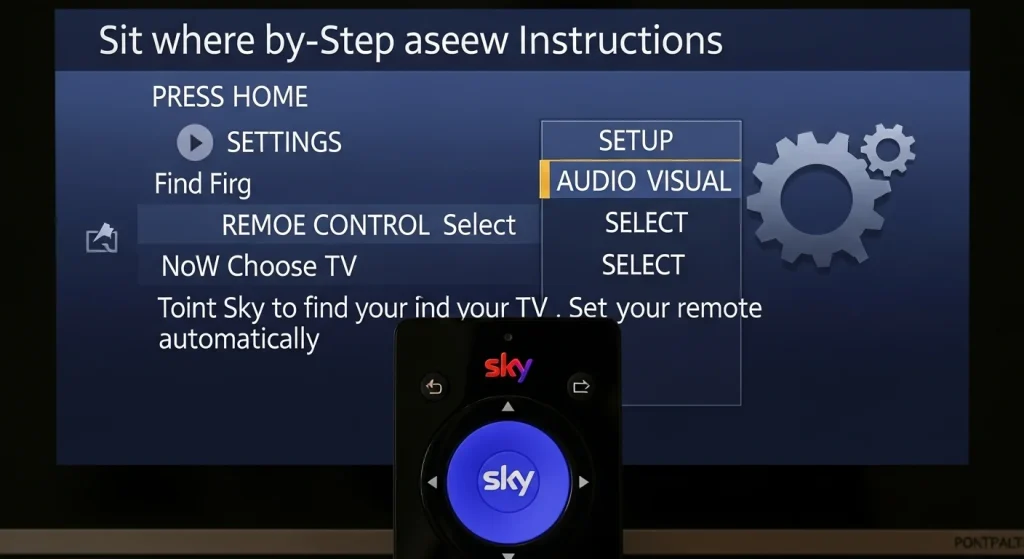
Sit where you can see your TV. Point your Sky remote at your Sky box. Press the blue HOME button. The Sky main menu will appear. Use the arrow buttons to go to SETTINGS. It looks like a grey cogwheel. Press the big round SELECT button in the middle. Inside Settings, find and select SETUP. Then, choose AUDIO VISUAL. A new menu will open. Look for REMOTE CONTROL and select it. Now, choose the option that says TV or Set up your remote. Your Sky device will now try to find your TV brand automatically.
What Happens During Automatic Linking
Your Sky box sends out a special search signal. It is looking for your TV. If it finds a match, it will show your TV’s brand name on the screen, like “LG” or “Panasonic.” You just press SELECT to confirm. The box then saves the correct control code. This whole process usually takes less than a minute.
How to Confirm Linking Worked
After you see a success message, you must test it. Point your Sky remote directly at your television screen. Do not point it at the Sky box for this test. Press the VOLUME UP button. Does the sound get louder? Great! Now try the big POWER button at the top. Does your TV turn off? If both tests work, your automatic linking is complete and successful.
Manual Sky Remote Linking Method
Sometimes, the automatic search cannot find your TV. This can happen with older TVs or less common brands. When this happens, you can use a manual code. This is like telling your Sky box the exact “language” your TV understands.
When Manual Setup is Needed
Use manual linking if the automatic search fails. Also use it if the automatic search finds your TV but the volume or power buttons still do not work correctly. Manual linking gives you more control to find the perfect code.
How to Access Manual Linking
Start the same way. Go to HOME > SETTINGS > SETUP > REMOTE CONTROL. This time, look for an option called MANUAL SETUP or CHOOSE TV BRAND. Select it. A long list of brands will appear. Scroll through and select your TV’s brand, like “Sony.”
Cycling Through TV Codes
Your Sky box will now begin a special test. It will send many different codes, one after the other, to your TV. Your TV might behave strangely during this test. The screen might go blank for a second, or the volume might jump. This is normal. The box is trying each code to see which one makes your TV respond.
How to Confirm Correct TV Code
When you see your TV react—like the volume bar appearing on screen—quickly press the SELECT button on your remote. This saves that specific code. Then test the volume and power to make sure it works.
Popular UK TV Brands
The manual list includes all the common brands found in UK homes. You will see Samsung, LG, Sony, Panasonic, Philips, Hisense, and Toshiba. Just find your brand and let the box test the codes.
Set Sky Remote to Control TV Volume and Power
You might wonder what exactly linking does. Your Sky remote already controls your Sky box. You use it to change channels and record shows. Linking teaches it to also control your television. This means the volume buttons change your TV’s sound. The power button turns your TV on and off. It does not add new functions for the Sky box. It adds functions for the TV. This is why it is so useful. It turns two remotes into one. This works perfectly with both Sky Q and Sky Glass remotes.
Linking a Sky Glass Remote
The Sky Glass remote is a special case. It is designed to be super simple. When you first plug in your Sky Glass TV and go through the initial setup, the remote often links to the TV automatically. You just follow the instructions on the screen. This remote uses Bluetooth, which is a strong wireless connection. It also uses infrared (IR) light for some commands.
How to Re-link a Sky Glass Remote
If your Sky Glass remote stops controlling the TV, you can re-link it easily. First, make sure your TV is on. On the remote, press and hold the 1 and 3 buttons together for about five seconds. You will see a light flash on the remote. This resets its connection to the TV. The TV should then guide you through linking it again. This is much less common than with Sky Q, but it is a handy fix to know.
Fix Sky Remote Linking Problems
Sometimes, things do not go perfectly. Here are solutions to common problems.
Common Issues and Fixes
If your Sky remote is not changing volume, the code is likely wrong. Go back to the Remote Control menu and run the setup again. Use the “Try next code” option if available. If the power button is not working, make sure you are pointing the remote at the TV, not the Sky box, when you test it. A flashing red light on the remote usually means the batteries are low. Replace them. If your TV is not responding to Sky remote, use the manual linking method we described above.
Advanced Troubleshooting
If simple fixes do not work, try restarting your Sky box. Unplug it from the power for 30 seconds, then plug it back in. You can also check your TV’s settings. Look for an option called HDMI-CEC. Different brands call it different names, like Anynet+ (Samsung) or Bravia Sync (Sony). Turn this setting on. It can sometimes help the devices talk to each other better.
Reset Sky Remote
If your remote is completely unresponsive or seems confused, a reset can help. This clears its memory of how to talk to your TV. To reset, press and hold the 7 and 9 number buttons on the remote at the same time. Hold them for about five seconds until the red light flashes. This does not delete your recordings or settings on the Sky box. It only resets the remote’s TV control functions. After a reset, you must go through the remote linking process again to reconnect it to your television.
Frequently Asked Questions
How do I link my Sky remote with my TV?
Go to Home > Settings > Setup > Remote Control on your Sky box. Then follow the automatic or manual instructions to select your TV brand.
Why won’t my Sky remote change volume?
This usually means the wrong control code is saved. Go back to the Remote Control setup menu and try the “Try next code” option for your TV brand.
Can Sky remote turn my TV on and off?
Yes! Once you successfully link it, pressing the power button on the Sky remote will turn both your Sky box and your TV on or off together.
Does Sky remote work with all UK TVs?
It works with most modern TVs from the last 10-15 years. Very old TVs might not be compatible.
How do I link Sky remote to a new TV?
You need to set it up again with the new TV. Just follow the same setup steps (Home > Settings > Setup > Remote Control) and select your new TV’s brand.
Conclusion
Linking your Sky remote with your TV is a quick and easy task that makes life simpler. We recommend trying the automatic setup first, as it is the easiest. If you have any problems, use the manual code method or try the troubleshooting tips. There is no need to buy a new remote or get frustrated. With a few minutes and fresh batteries, you can control your whole TV system with just one remote. Enjoy your tidy sofa and easy viewing.
