
How to Connect the Sky Remote to the TV (Simple UK Step-by-Step Guide)
A Sky remote is a single gadget that controls both your Sky box and your television. It lets you change channels and adjust the volume without switching between two different remotes. “Connecting the remote to the TV” means teaching it to talk directly to your television. This link makes the volume, mute, and power buttons work.


With more than 12 years of hands-on experience in satellite television, Freeview systems, and UK broadcast technology, Daniel focuses on helping users choose the right satellite receivers, tune Freeview channels, and solve common signal and setup issues across the UK.
 Add as a preferred source on Google
In the UK, people often need to do this when they have a new TV installed, when they get a replacement Sky remote, or when their volume buttons suddenly stop responding. If you are a Sky Q, Sky Glass, Sky Stream, or Sky+ HD user in the UK, this guide is for you. You can get your devices working together in just a few simple steps.
Types of Sky Remotes Used in the UK
Sky has released different remotes over the years. They all do the same main job, but they look different and connect in slightly different ways. Knowing which one you have helps you choose the right setup steps.
The common types are the Sky Q Touch Remote, the Sky Q Button Remote, the Sky Glass and Sky Stream Remote, and the older Sky HD Remote. Some use fancy wireless technology, while others use simple infrared light. Your first task is to identify your remote before you start.
Sky Q Touch Remote
The Sky Q Touch Remote is very sleek. It has a smooth, black touchpad instead of arrow buttons. You move around the TV menu by gently swiping your finger on this pad. It feels like using a smartphone.
This remote uses Bluetooth to talk to your Sky Q box. This means you don’t always need to point it directly at the box. However, it still uses infrared support to send commands to your TV for volume and power. You set up the TV connection through your Sky Q box’s on-screen menus.
Sky Q Button Remote
The Sky Q Button Remote has a classic, easy-to-use design. It features a circular direction pad and clear, pressable buttons. Many people find this traditional button layout simpler than a touchpad.
This remote also connects to the Sky Q box wirelessly. It offers very easy TV control setup. Like the Touch remote, you use the Sky Q settings menu to connect it to your television. It is a very reliable and popular choice for Sky customers.
Sky Glass and Sky Stream Remote
If you have Sky Glass or Sky Stream, you have a slim, silver remote. It has purple buttons for Sky and other coloured buttons for apps. This remote is designed to be the only one you need.
It uses Bluetooth pairing to connect to your Sky Glass TV or Stream puck. The entire setup is often internet-based. When you first turn on your device, it guides you through the connection process automatically, making it very simple.
Older Sky HD Remote
The older Sky HD remote is larger and has lots of buttons, including a number pad. It came with Sky+ HD boxes. This remote works purely through infrared setup, which is a beam of light you cannot see.
You must point it directly at the device for it to work. It has some compatibility limits with newer TVs, especially with smart features. To connect it, you must enter a numeric code for your specific TV brand, which is a more manual process.
What You Need Before Connecting the Sky Remote
Connecting your Sky remote is easy, but you should gather a few things first. Having everything ready makes the process much smoother and quicker.
You will need your Sky remote itself, with fresh batteries installed. You should also know the brand of your TV, like Samsung or LG. Make sure your Sky box, Sky Glass, or Sky Stream is switched on and working. Finally, ensure you have a clear view between the remote and the TV during setup.
Basic Setup Checklist
Here is your simple checklist to run through:
- A Sky remote with fresh batteries.
- Your TV’s brand and model (find this on a sticker on the back).
- Your Sky box powered on and plugged in.
- A clear line of sight between the remote and the TV.
Once you have these four things, you are ready to start the connection.
How to Connect the Sky Remote to the TV Automatically
The automatic method is the easiest and fastest way to connect your remote. Your Sky device does all the hard work for you. This works for Sky Q, Sky Glass, and Sky Stream.
Begin by pressing the Home button on your Sky remote. Use the arrow buttons to go to Settings, then select Setup. Inside, find and choose Audio Visual or TV Control. Now, look for the option labelled ‘Set up remote’ or ‘Find it for me’ and select it.
Your screen will show that the system is searching. It tries lots of different signals until it finds the one that matches your TV. Just follow any simple instructions that appear. When it finishes, test the connection immediately by pressing the volume buttons on your Sky remote.
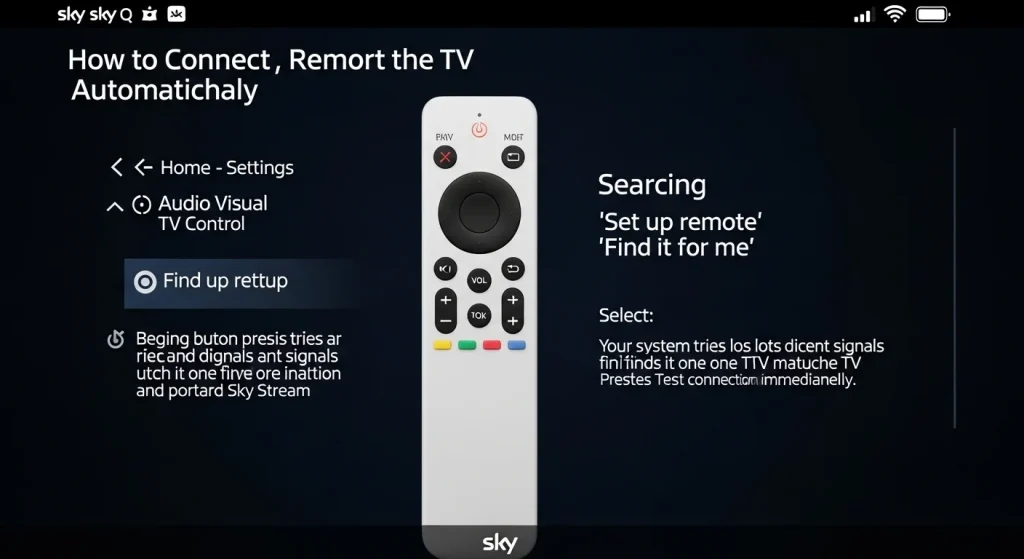
Using the “Find It For Me” Option
The “Find It For Me” option is a clever automatic scanner. It searches a huge built-in list of TV codes. The system detects your TV brand by sending out a code and waiting to see if your TV responds.
This method works best with popular, modern TVs from big brands like Samsung, LG, and Sony. It is the perfect first choice because it requires no input from you other than starting the process. It’s the simplest path to success.
How to Connect the Sky Remote to the TV Manually (Using TV Codes)
If the automatic search doesn’t find your TV, use the manual method. This means you will enter a specific code for your TV brand. It always works if you have the right code.
Go back into the menu: Home > Settings > Setup > Audio Visual. Select TV Control and then choose Manual Setup or ‘Enter code’. A list of alphabetically sorted brands will appear. Take your time choosing the correct TV brand from this list.
Your Sky box will now show you one or more 4-digit codes. It will explain how to test them. You usually select a code, point the remote at the TV, and press volume up. If the TV volume doesn’t change, you go back and try the next code. You repeat this until you find one that works.
Entering TV Brand Codes on the Sky Remote
You need manual setup when your TV is older, less common, or just isn’t found by the automatic scan. The codes come from Sky’s own database.
The process involves testing each suggested code. Point the remote at your TV, enter the code, and press a button like ‘Volume Up’. Watch or listen for a response from your TV. The most important final step is saving the settings once you find a code that works. If you don’t save, the remote will forget the code.
How to Pair the Sky Remote with the Sky Box
Sometimes, the remote stops talking to the Sky box itself. When this happens, you need to re-pair them. This is a separate step from setting up TV control.
For Sky Q, Glass, and Stream remotes, press and hold the Home button and the Select button together. Keep holding them for about five seconds until you see a light flash.
Re-Pairing the Remote if It Stops Working
These pairing button steps (Home + Select) tell the remote to search for its box. Watch for the LED light signals on the remote. It will blink to show it’s in pairing mode.
Keep the remote close to your Sky box during this, within one metre is best. Good positioning with a clear line of sight helps. Your TV should then show a message saying the pairing is complete. If it doesn’t work, just try the button combination again.
How to Set Up Sky Remote Volume and Power Control
A common issue is that the remote changes channels but the volume buttons do nothing. This means the remote is connected to the Sky box but not yet to your TV’s sound system.
The solution is in your Sky settings. Navigate to Settings > Setup > Audio Visual. Look for an option called ‘Control TV’ or ‘Control Audio System’. This menu is where you assign the volume commands.
Setting Up Volume, Mute, and Power Buttons
The buttons may not respond because they aren’t linked to any device. In the menu, you choose between setting TV control (for the TV’s own speakers) or soundbar control (for an external speaker).
Your Sky will then guide you through a short setup to connect to that chosen device. Remember, saving the settings at the end is crucial. Always press ‘Save’ or ‘OK’ to make sure the remote remembers the connection.
Connecting the Sky Remote to Smart TVs in the UK
Most new Smart TVs have a feature called HDMI-CEC. This allows devices connected with an HDMI cable to control each other. It makes using one remote even easier.
You need to turn this feature ON in your TV’s own settings menu. Each manufacturer uses a different brand name for it. Enabling it lets your Sky remote handle basic TV functions more seamlessly.
Using HDMI-CEC (One-Remote Feature)
Here are the names to look for on popular UK brands:
- On Samsung TVs, enable Anynet+.
- On LG TVs, find and turn on SIMPLINK.
- On Sony TVs, look for BRAVIA Sync.
Switching this on is like giving your devices permission to talk to each other. It often makes the initial connection smoother and can allow your Sky remote to turn your TV on and off automatically.
Sky Remote Not Connecting? Common Problems and Fixes
If your remote won’t connect, don’t worry. Try these solutions in order. They fix most problems people face.
First, always replace the batteries with new ones. Weak batteries cause most connection failures. Next, restart your Sky box and TV by unplugging them from the wall for 30 seconds. If that doesn’t work, you can reset the remote itself. Finally, skip any automatic issues by trying a manual connection with TV codes.
Quick Troubleshooting Steps
Follow this simple order:
- Replace the remote batteries.
- Restart both the Sky box and the TV.
- Reset the Sky remote (hold 7 & 9).
- Try the manual code connection method.
Working through these four steps will solve nearly every connection problem you might encounter.
How to Reset a Sky Remote
A factory reset clears everything from your remote’s memory. Use this if the remote is completely unresponsive or behaving very oddly. Warning: You will need to set it up again from scratch.
To reset, press and hold the 7 and 9 number buttons on the remote at the same time. Keep holding them down.
Factory Reset Steps
The button combination is 7 + 9. Hold them until the small LED light on the front of the remote flashes. This usually takes about five seconds.
A reset is needed when nothing else works. After the reset, the remote is blank. You must first re-pair it with your Sky box, and then go through the full TV connection process again, either automatically or manually.
FAQs – Connecting the Sky Remote to the TV (UK)
Can one Sky remote control any TV?
No. A Sky remote is paired to one Sky box and programmed for one specific TV. It will not control a different TV in another room.
Does the Sky remote work with all brands?
It works with almost all TV brands sold in the UK, like Samsung, LG, Sony, and Panasonic. Very old or uncommon models might need manual code entry.
How long does setup take?
The automatic method takes 2-3 minutes. The manual code method can take 5-10 minutes if you need to try a few codes.
Can a Sky remote control a soundbar?
Yes! During the ‘Audio Visual’ setup, choose ‘Audio System’ instead of ‘TV’. You can then connect the volume buttons directly to your soundbar.
Conclusion
Connecting your Sky remote is a simple two-step choice. First, always try the automatic method. It’s the quickest and easiest. If that doesn’t work for any reason, use the manual method as a reliable backup.
Remember to follow these UK-specific steps for your type of Sky equipment. In just a few minutes, you can stop juggling remotes and enjoy controlling everything with one.
