
How to Connect a Firestick Remote to Your TV (UK Step-by-Step Guide)
Amazon Firestick remote connection problems happen often. People find their remote does not control the TV or stops working. Fixing this is very important.

A properly connected Firestick remote lets you do two great things. First, it can turn your TV on and off. Second, it can control the volume. This means you only need one remote on your sofa, not two.
Most modern UK TV brands like Samsung, LG, and Sony work well with Firestick remotes. This guide will show you how to connect your remote, fix common problems, and set up TV controls step-by-step.

With more than 12 years of hands-on experience in satellite television, Freeview systems, and UK broadcast technology, Daniel focuses on helping users choose the right satellite receivers, tune Freeview channels, and solve common signal and setup issues across the UK.
 Add as a preferred source on Google
2. What You Need Before Connecting Firestick Remote
Firestick Remote Setup Requirements
Before you start, make sure you have a few simple things ready. This makes the setup process quick and easy.
You need your Amazon Fire TV Stick and the Fire TV remote that came with it. Your TV must have a free HDMI port to plug the Firestick into.
A good Wi-Fi internet connection is essential. The Firestick needs the internet to work, and the remote uses your home network to pair.
Put fresh batteries into your remote. Old batteries cause most connection problems. Also, check if your TV supports HDMI-CEC. This feature helps the remote control your TV’s power and volume automatically. You can usually find this setting in your TV’s menu.
3. Types of Firestick Remotes Explained
Identify Your Fire TV Remote
Knowing which remote you have helps you understand how it connects. Different models work in slightly different ways.
The Standard Fire TV Remote and the Alexa Voice Remote come with most Firesticks. Newer ones, like the Fire TV Stick 4K remote, have dedicated power and volume buttons.
The main difference is how they talk to the Firestick. Most modern remotes use Bluetooth. This means they do not need to be pointed directly at the device. Some buttons, like power and volume, might use Infrared (IR), which does need a clear line of sight to your TV.
The model matters because the pairing process for a brand-new remote is different from reconnecting an old one.
4. How to Connect Firestick Remote to TV (First-Time Setup)
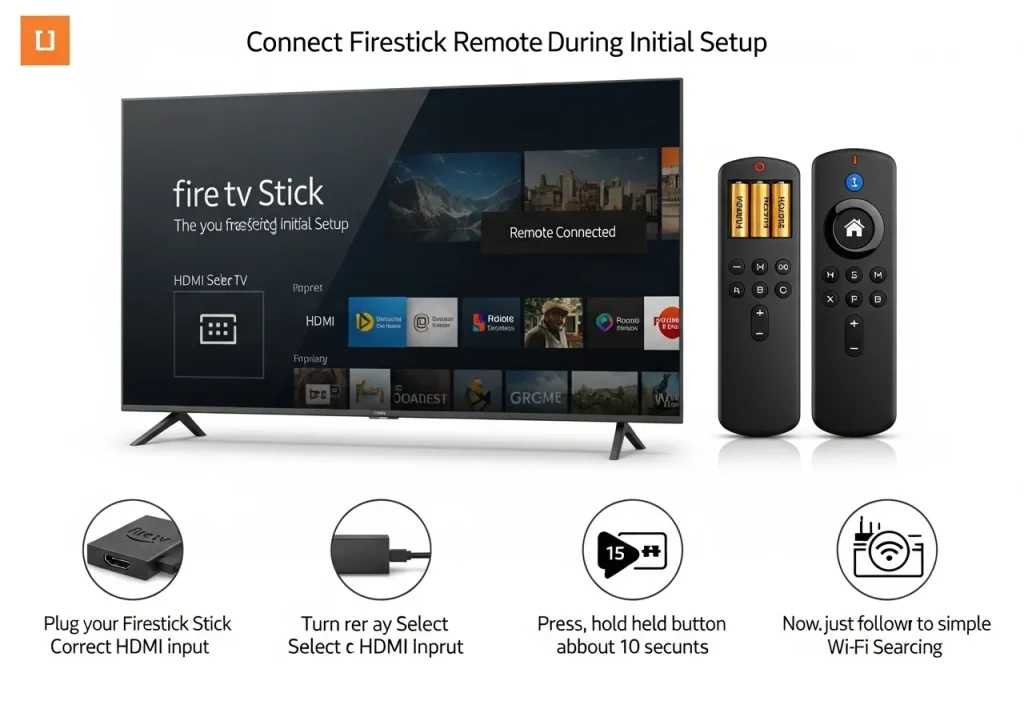
Connect Firestick Remote During Initial Setup
When you take your Firestick out of the box, follow these steps to connect everything.
- Plug your Fire TV Stick into an HDMI port on your TV.
- Connect the Firestick to power using the USB cable and plug.
- Turn on your TV and select the correct HDMI input.
- Insert the batteries into your Firestick remote.
- Press and hold the Home button (the one with a house icon) for about 10 seconds. The remote should start searching.
- Wait for a confirmation message on your TV screen. It will say something like “Remote Connected”.
- Now, just follow the simple on-screen instructions to connect to your Wi-Fi and finish the setup.
What Happens During Pairing?
When you hold the Home button, the remote enters pairing mode. It sends a Bluetooth signal to the Firestick. The Firestick recognises this signal and links the two devices together. You will usually see a yellow light flash on the remote, and then a message will pop up on your TV. This means they are now a team and can talk to each other.
5. How to Pair Firestick Remote to TV After Setup
Pair Firestick Remote After Initial Setup
Did your remote stop working? Or do you have a new remote for an old Firestick? Use this method.
- Go to the Settings menu on your Fire TV home screen.
- Select Controllers & Bluetooth Devices.
- Choose Amazon Fire TV Remotes.
- Click on Add New Remote.
- Your Firestick will say “Searching for remotes”. Now, press and hold the Home button on the remote you want to pair for 10 seconds.
- Wait for the “Remote Connected” message.
You need this method when you buy a replacement remote or if your old one has lost its connection. You can also use these steps to pair a second remote to the same Firestick, like a spare for another person in your house.
6. How to Control TV Power & Volume with Firestick Remote
Set Firestick Remote to Control TV Volume
To control your TV’s power and volume, you need to teach the Firestick about your TV.
- Go to Settings on your Firestick.
- Select Equipment Control.
- Choose Manage Equipment.
- Click on TV.
- A list of brands will appear. Select your TV brand (e.g., Samsung, LG).
- The Firestick will test the commands. Follow the on-screen prompts to see if the power and volume buttons work.
This setup often uses a feature called HDMI-CEC. Make sure this setting is turned ON in your own TV’s system menu. If you use a soundbar, you might tell the Firestick remote to control the soundbar’s volume instead of the TV’s.
7. Connect Firestick Remote Without Original Remote
No Firestick Remote? Here’s What to Do
Lost your remote? You can still connect a new one using your smartphone.
Download the Amazon Fire TV app on your Android or iPhone. Make sure your phone is connected to the same Wi-Fi network as your Firestick. Open the app, and it should find your Firestick. The app turns your phone into a temporary touchpad and keyboard.
This lets you navigate to the Settings > Controllers menu to pair a new physical remote. For advanced users, a USB OTG cable with a wired USB mouse can also work to click through the menus.
8. Firestick Remote Not Connecting – Troubleshooting
Firestick Remote Not Working? Fixes
If your remote is not working, try these common fixes for UK users.
Problem: Remote not pairing.
Fix: Bring the remote very close to the Firestick (about 10 cm away) and try holding the Home button again. Interference from other devices can block the signal.
Problem: Volume buttons do nothing.
Fix: Go to Settings > Equipment Control and set up your TV brand again. Ensure HDMI-CEC is enabled on your TV.
Problem: Remote is completely dead.
Fix: Replace the batteries first. This solves 90% of issues. If that fails, restart your Firestick by unplugging it from power for 30 seconds.
Problem: Firestick does not detect the remote.
Fix: Reset the remote by holding the Left, Menu, and Back buttons together for 10 seconds. Then try pairing it again from the Settings menu.
9. Firestick Remote Compatibility with UK TV Brands
Firestick Remote Compatibility
The Firestick remote works very well with most modern UK TVs. Popular brands like Samsung, LG, Sony, Philips, Panasonic, and Hisense are fully supported.
The power and volume control feature depends on two things. First, your TV must be from roughly 2012 or newer. Second, the HDMI-CEC feature must be turned on. You can find this in your TV’s settings, sometimes called Anynet+ (Samsung), Simplink (LG), or Bravia Sync (Sony).
Some older or very basic TV models might not support these controls. In that case, you can still use the Firestick remote for navigation, but you will need your TV remote for power and volume.
10. Tips for Best Firestick Remote Experience
Firestick Remote Tips
- Update your Firestick software regularly. Updates can fix remote control bugs.
- If your remote uses IR for power/volume, keep a clear line-of-sight between the remote and your TV.
- Too many Wi-Fi devices can cause interference. Try moving your router or Firestick if the remote seems laggy.
- Do not wait for the remote to die. Change the batteries early if the response gets slow.
11. FAQs – People Also Ask
Frequently Asked Questions
How do I pair my Firestick remote to my TV?
For a new setup, hold the Home button for 10 seconds. To re-pair, go to Settings > Controllers & Bluetooth Devices > Add New Remote.
Can Firestick remote control any TV?
It can control most modern TVs for power and volume if you set it up in the Equipment Control menu and your TV supports HDMI-CEC.
Why won’t my Firestick remote control volume?
You probably have not set up Equipment Control. Go to Settings > Equipment Control > Manage Equipment > TV and select your brand.
Can I use Firestick without a remote?
Yes. Use the free Fire TV app on your smartphone connected to the same Wi-Fi network.
How many remotes can connect to one Firestick?
You can pair up to 7 Bluetooth remotes or controllers to a single Fire TV Stick.
12. Conclusion
Connecting your Firestick remote is usually simple. For a new Firestick, just hold the Home button. To fix problems, re-pair it through the Settings menu.
Most users get it working in just a minute. If you have issues, always try new batteries first, then restart your Firestick.
Follow the steps for TV control to finally put your other remote away. Enjoy your streamlined, one-remote setup for watching TV in the UK.
