
How to Set Sky Remote to TV – Easy UK Step-by-Step Guide
Do you have a Sky remote and a TV remote on your sofa? This guide will help you put one away. Setting your Sky remote to your TV is a very useful task. It lets you use one remote for everything. You can press one button to turn on both your Sky box and your television. You can use the volume buttons to control your TV’s sound. Many people in the UK use Sky Q, Sky Glass, or Sky Stream. They all want this simple setup. Sometimes, the process does not work straight away. That can be annoying. This guide will show you the easy steps. It will also help you fix any problems. Soon, you will control everything with just your Sky remote.


With more than 12 years of hands-on experience in satellite television, Freeview systems, and UK broadcast technology, Daniel focuses on helping users choose the right satellite receivers, tune Freeview channels, and solve common signal and setup issues across the UK.
 Add as a preferred source on Google
What Does “Setting a Sky Remote to TV” Mean?
Setting your Sky remote to your TV is like giving it a new skill. The remote already knows how to talk to your Sky box. You use it to find movies and change channels. When you set it to your TV, you teach it a second language. Now it can also talk to your television. This means the power button turns your TV on and off. The volume buttons make the sound louder or quieter. The mute button silences the TV. You get complete control without ever looking for another remote. It makes watching TV much simpler and more convenient.
Clearing Up Common Confusion
People often mix up two different things. The first thing is pairing the remote with the Sky box itself. This usually happens automatically when you get your Sky service. The second thing is setting the remote to control the TV. This is a separate step that you need to do yourself. You must complete both steps for the best experience. The first lets you watch Sky. The second lets you control how you watch it. This guide focuses on that second, very important step.
Identify Your Sky Remote Type
Sky has made several types of remotes. Knowing which one you have helps you follow the right steps. Look at the remote in your hand. The Sky Q Voice Remote has a large blue button with a microphone symbol. You can talk to your TV with it. The Sky Q Touch Remote has a big, smooth touchpad at the top. The Sky Glass Remote is small, white, and has only a few buttons. The Sky Stream Remote looks a lot like the Sky Q Voice Remote. Take a moment to identify your model before you start.
Why the Remote Type Makes a Difference
The kind of remote changes how it sends signals. Newer remotes, like the Sky Glass remote, use a technology called Bluetooth. This works like wireless headphones and does not need a direct line of sight. Older Sky Q remotes usually use an infrared beam. You must point these directly at the device. The menu on your TV screen might also look a little different for each model. But the goal is always the same. You need to tell your Sky system the brand name of your television.
Before You Start: What You’ll Need
Let’s get everything ready for a smooth setup. First, please switch your television on. Make sure your Sky Q box, Sky Glass TV, or Sky Stream puck is also on and connected to the TV. Now, check the batteries in your Sky remote. If they are old, put in new ones. Weak batteries cause most setup problems. Finally, know your TV’s brand. Look for the logo on the front of the TV or a sticker on the back. Is it a Samsung, LG, Sony, or Philips? Having this information ready is the key to a quick setup.
How to Set a Sky Q Remote to TV
Follow these simple steps in order. They work for most Sky Q remotes.
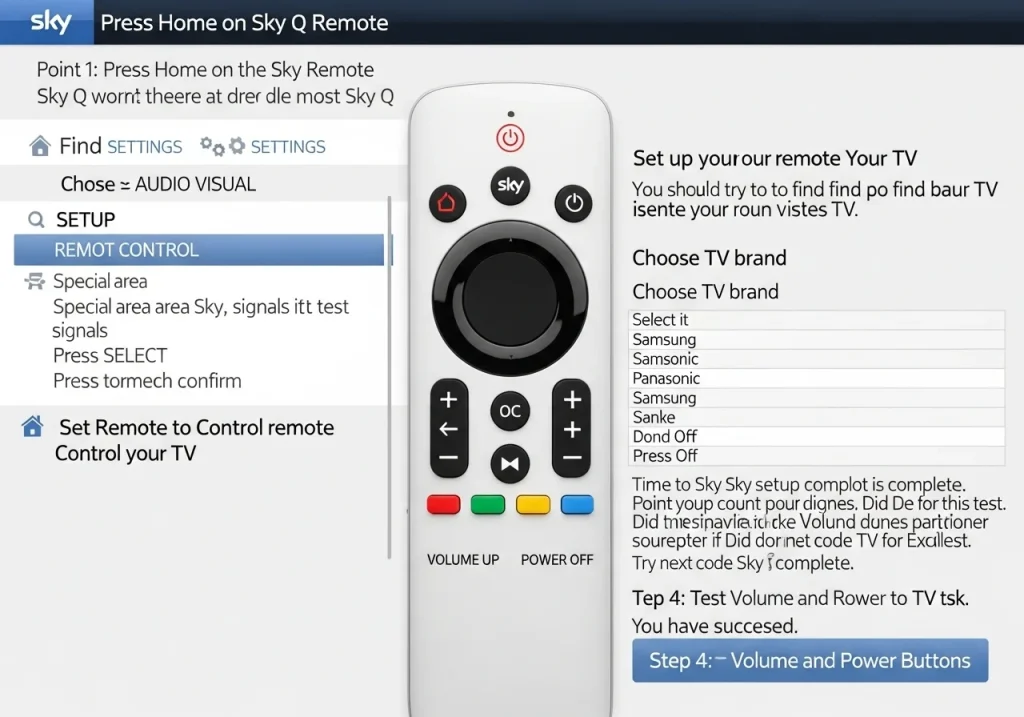
Step 1: Press Home on the Sky Remote
Sit where you can see the screen. Point your Sky remote at your Sky Q box. Find and press the HOME button. It is blue and has a little house icon. The Sky main menu will appear. Use the arrow buttons to move to SETTINGS. It looks like a grey gear or cog. Press the big round SELECT button in the middle of the remote to open it.
Step 2: Select Setup → Audio Visual
Inside the Settings menu, you will see a list. Find and select the option called SETUP. A new menu will open. Now, choose AUDIO VISUAL from this list. Another menu appears. Look for REMOTE CONTROL and select it. This is the special area where you manage your remote’s connections to other devices.
Step 3: Set Remote to Control Your TV
You should now see an option that says “Set up your remote” or “Control your TV”. Select it. Your Sky Q box will try to find your TV brand by itself. It sends out test signals. If it finds a match, it shows the brand name on screen. Press SELECT to confirm. If it does not find it, choose “Choose TV brand”. A long list will appear. Scroll until you find your brand, like Samsung or Panasonic. Press SELECT.
Step 4: Test Volume and Power Buttons
A message will say the setup is complete. Time to test! Point your Sky remote directly at your TV screen. Do not point it at the Sky box for this test. Press the VOLUME UP button. Did the sound get louder? Excellent! Now try the POWER button. Did your TV turn off? If both tests work, you have succeeded. If the volume did not work, go back and use the “Try next code” option for your TV brand.
How to Set a Sky Glass Remote to TV
The Sky Glass remote is designed to be very easy. When you first set up your Sky Glass TV, the remote should configure itself automatically. You just follow the instructions that pop up on the screen. This remote uses Bluetooth, which is a strong and reliable connection.
What to Do if Setup Doesn’t Start Automatically
If the automatic setup did not happen, you can start it yourself. On your Sky Glass TV, press the Home button on the remote. Go to Settings from the top menu. Then, select Remotes & Devices. Choose Set up remote or Pair remote. Your TV will then guide you through the simple steps. You will select your TV brand from a list, just like with the Sky Q remote.
How to Set Sky Remote to TV Without Knowing the TV Brand
Not sure what brand your TV is? You can still set up the remote. Use the automatic search feature. In the REMOTE CONTROL menu on your Sky Q, select “Automatic Search”. The system will try every code it knows, one by one. This takes two or three minutes. Your TV might turn off or the volume might jump during the test. When your TV reacts correctly, quickly press SELECT on your remote to save that code.
Sky Remote Not Setting Up with TV? Common Problems & Fixes
Sometimes, things do not go as planned. Here are solutions to the most common issues.
Volume Buttons Not Working
If the volume buttons do nothing, the remote is using the wrong control code. Go back to the REMOTE CONTROL settings. Select your TV brand again. This time, after you choose it, look for the “Try next code” button. Press it and then test the volume again. Keep doing this until the volume buttons work.
Power Button Not Turning TV On/Off
This usually means the saved code only works for volume, not power. You need a different code for your brand. Go back into the setup menu. Choose to set up the remote again. Make sure you point the remote at the TV, not the Sky box, when you test the power button at the end.
How to Reset and Re-Set a Sky Remote
Is your remote behaving very strangely? A reset can clear the problem. Turn on your TV and Sky box. On your Sky remote, press and hold the number 1 and 3 buttons at the same time. Hold them for about five seconds. The small red light on the remote will flash twice. This resets the remote’s TV control memory. Now, you must set it up with your TV again by following the normal steps from earlier.
Can One Sky Remote Control Any TV?
Most TVs bought in the UK in the last 10-15 years will work with a Sky remote. If your TV is very old, it might not understand the signals. Some new TVs have a clever feature called HDMI-CEC. If your Sky box is connected with an HDMI cable, this feature can allow control without any setup. Check your TV’s settings for an option named HDMI-CEC, Anynet+ (Samsung), or BRAVIA Sync (Sony).
FAQs – How to Set Sky Remote to TV
Why won’t my Sky remote control my TV?
First, always check the batteries. Put in new ones. Then, make sure you are in the correct Remote Control menu on your Sky box. Confirm you selected the right TV brand.
Do I need internet to set up a Sky remote?
No, you do not. The setup process happens locally between your remote, Sky box, and TV. An internet connection is not necessary for this.
Does Sky Glass remote need manual setup?
It usually sets itself up automatically. If it did not, you can set it up manually in the TV’s Settings under Remotes & Devices.
Can a Sky remote control TV volume only?
Yes. During setup, you might see an option for “Volume only” mode. This is useful if you use another device, like a soundbar, to turn your TV on and off.
Helpful Tips for UK Sky Users
For the best performance, keep your TV’s software updated. These updates often fix bugs. Change your remote batteries at least once a year. Also, make sure your Sky box is not hidden behind other equipment. Things like game consoles or books can block the infrared signal from older remotes.
Conclusion
Setting your Sky remote to control your TV is a quick and simple task. It makes using your TV much easier and tidier. Just remember the main path: Settings > Setup > Remote Control. Choose your TV brand and test the buttons. If you hit a problem, try the automatic search or a simple reset. Now, enjoy the convenience of having one remote control everything.
Related Post Must Read About:
- How to Access Free Sky Glass Username and Password for Firestick APK
- Unlock Free IPTV Channels on Sky Glass: A Complete Guide
- How to Get Free Sky Glass Firestick Code: Your Ultimate Guide
- How to Get Sky Glass Downloader Code for Free: Everything You Need to Know
- Unlocking Free Sky Glass Username and Password: A Comprehensive Guide
- Sky Glass Remote App for iPhone: Your Ultimate Guide
- How to Access Free Sky Glass Username and Password for Firestick APK
- Unlocking Free Sky Glass TV: A Comprehensive Guide
- How to Get Free Sky Glass Username and Password and Sky Glass Downloader Code
- Sky Glass Remote Buttons Not Working
- How Do I Program My Sky Remote to TV
- Sky Glass TV Remote App
- How to Connect Sky Remote to Your TV
- How to Set Sky Remote for TV
- How to Set Up Sky Remote With TV
