
How to Link a Sky Remote to TV – Easy Step-by-Step UK Guide
Do you use a Sky box or Sky Glass? If you do, you probably use a Sky remote. Right now, you might use two remotes: one for Sky and one for your TV. This guide will show you how to use just one. Linking your Sky remote to your TV lets you control the TV’s power and volume. You only need the Sky remote in your hand. This works with popular UK Sky devices like Sky Q, Sky Glass, and Sky Stream. The setup is quick and easy. You can often finish it in a few minutes. Let’s get started.


With more than 12 years of hands-on experience in satellite television, Freeview systems, and UK broadcast technology, Daniel focuses on helping users choose the right satellite receivers, tune Freeview channels, and solve common signal and setup issues across the UK.
 Add as a preferred source on Google
What Does “Linking a Sky Remote to a TV” Mean?
Linking a Sky remote to a TV is like teaching it a new language. Your Sky remote already knows how to talk to your Sky box. We teach it how to talk to your television. Once linked, you can press the volume buttons on the Sky remote. Your TV will listen and turn the sound up or down. You can also press the power button. This will turn both your Sky box and your TV on or off together. It makes watching TV much simpler. You do not need to search for a second remote.
The Difference from Pairing
People sometimes mix up “linking” and “pairing.” They are two different things. Pairing is the first connection between your remote and your Sky box. This usually happens automatically. Linking is the next step. It connects your remote to your television. This second connection gives you control over the TV itself. You need to do both for full control. This guide focuses on the linking step with your TV.
Which Sky Remote Do You Have?
Sky has different remotes. The steps to link them can be slightly different. It is important to know which one you have. Look at your remote. The Sky Q Voice Remote has a blue button with a microphone symbol. You can talk to it. The Sky Q Touch Remote is more square and has a touchpad at the top. The Sky Glass Remote is smaller and sleeker. It often comes with Sky Glass TVs. The Sky Stream Remote looks similar to the Sky Q Voice Remote. Finding your remote type helps you follow the correct steps.
Why the Remote Type Matters
Newer remotes, like the one for Sky Glass, use Bluetooth. Older remotes mostly use a technology called infrared. This is the red light you see at the front. The linking process is similar for most remotes. But the menu you use on your screen might look a bit different. Do not worry. The basic idea is always the same. You need to tell your Sky box your TV’s brand, like Samsung or LG.
Before You Start: What You’ll Need
Getting ready is simple. First, make sure your television is switched on. Your Sky box should also be on and connected to the TV. Check the batteries in your Sky remote. Fresh batteries work best. You should also know the brand of your TV. Look for the logo on the front or back of the television. Common brands in the UK are Samsung, LG, Sony, and Panasonic. Having this information ready will make the setup faster.
How to Link a Sky Q Remote to Your TV
Follow these steps carefully. They work for most Sky Q remotes.
Step 1: Press Home on Your Sky Remote
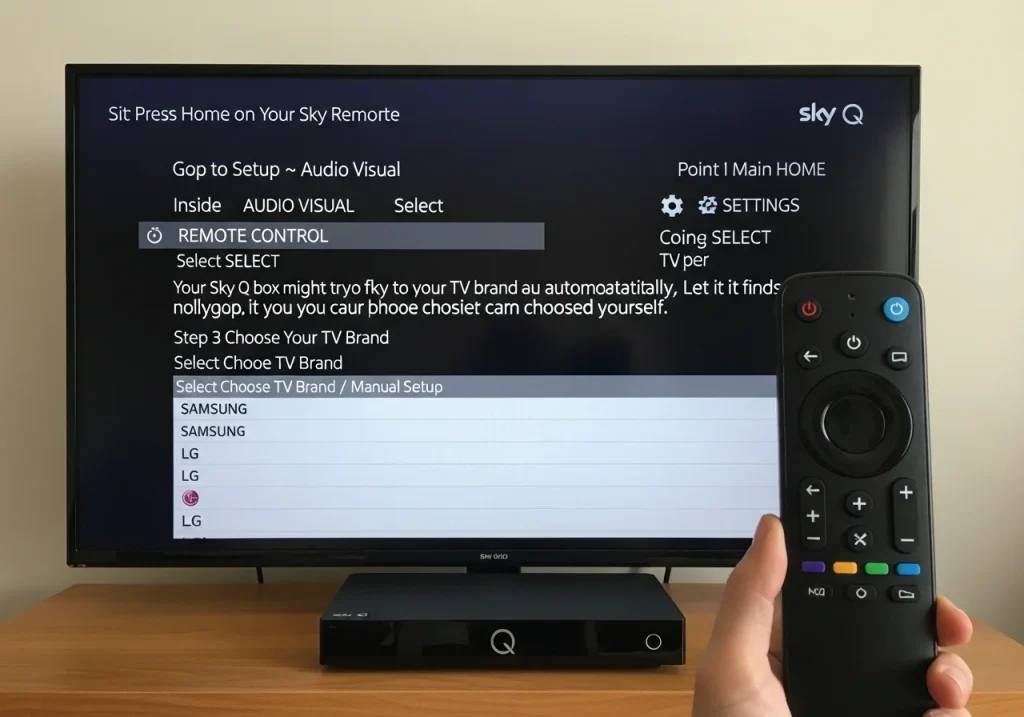
Sit in front of your TV. Point your Sky remote at the Sky Q box. Press the HOME button. This button has a little house symbol on it. The main menu will appear on your television screen. Use the arrow buttons to go to SETTINGS. It looks like a little cog or gear. Press SELECT (the big round button in the middle) to open it.
Step 2: Go to Setup → Audio Visual
Inside the Settings menu, find the option called SETUP. Select it. Then, look for AUDIO VISUAL. Choose this. You will see a new list of options. One of them is REMOTE CONTROL. Select REMOTE CONTROL. This is where we tell the system about your TV.
Step 3: Choose Your TV Brand
Your Sky Q box might try to find your TV brand automatically. Let it try. If it finds the correct brand, you can confirm it. If not, you can choose it yourself. Select “Choose TV brand” or “Manual Setup”. A list of brands will appear. Scroll through the list. Find your TV’s brand name, like Samsung or LG. Press SELECT on the correct brand.
Step 4: Test Volume & Power Buttons
A message will appear. It will tell you the setup is complete. Now, test your remote. Point it at your TV. Try pressing the volume up button. Can you hear the sound getting louder? Try the power button. Does your TV turn off? If it works, you have finished! If not, you may need to try a different brand code.
How to Link a Sky Glass Remote to Your TV
The Sky Glass remote is very clever. It often sets itself up automatically. When you first turn on your Sky Glass TV, it should ask you to link the remote. Just follow the simple instructions on the screen. The remote uses Bluetooth to talk to the TV. This is a stronger connection than the old infrared light.
What to Do If Auto Setup Fails
Sometimes, the automatic setup might not work. Do not panic. You can do it manually. On your Sky Glass TV, go to Settings. You can find this in the main menu. Then, go to Remotes & Devices. Select Set up remote. The TV will guide you through the steps. It is very similar to the Sky Q process. You will select your TV brand from a list.
How to Link Sky Remote Without Knowing TV Brand
What if you do not know your TV’s brand? There is a way to find it. Use the automatic search feature on your Sky Q box. In the REMOTE CONTROL menu, choose “Automatic Search” or “Find TV”. Your Sky box will send out lots of different signals. It will try every code it knows. This can take a few minutes. Your TV might turn off or change volume during the test. When it works, press SELECT to save that code.
Common Sky Remote Problems & Fixes
Sometimes, things do not work perfectly. Here are simple fixes for common problems.
Sky Remote Volume Not Working
If the volume buttons do nothing, the remote is not linked properly. Go back into the REMOTE CONTROL settings. Try choosing your TV brand again. Sometimes, TV brands have more than one code. You can try the next code in the list.
Power Button Not Turning TV On/Off
This is another sign of a wrong code. Go back to the setup menu. Unlink your TV brand and then select it again. Test a different code for the same brand. Make sure you point the remote at the TV, not the Sky box, when testing the power.
How to Reset and Re-Link a Sky Remote
Is your remote acting very strange? A reset can help. Turn on your TV and Sky box. Press and hold the 1 and 3 buttons on the remote together. Keep holding them for about five seconds. The remote’s red light at the top will flash twice. This resets the TV control part. After this, you must link it to your TV again. Just follow the setup steps from earlier in this guide.
Can One Sky Remote Control Any TV?
Almost all modern UK televisions work with a Sky remote. Older TVs might not understand the signals. If your TV is very old, it might not link. Most TVs from the last 15 years should work. Some new TVs also have a feature called HDMI-CEC. If you connect your Sky box with an HDMI cable, this feature can let the remote control the TV automatically. Check your TV’s settings for this option.
FAQs – How to Link a Sky Remote to TV
Why won’t my Sky remote connect to my TV?
First, check the batteries. Then, make sure you selected the correct TV brand in the settings menu. Try the automatic search feature.
Does Sky Glass need manual setup?
Usually, no. Sky Glass remotes often pair automatically. If yours did not, you can do a manual setup in the TV’s Settings menu.
Can I control TV volume with Sky remote?
Yes! That is the main reason for linking it. After a successful link, the volume buttons will control your TV’s sound.
Do I need internet to link the remote?
No, you do not need the internet. The linking process happens between your remote, Sky box, and TV directly.
SEO & User Tips for UK Readers
For the best experience, keep your TV’s software updated. Manufacturers release updates that can improve remote control. Change your remote batteries once a year. Weak batteries cause many problems. If your TV supports HDMI-CEC, try turning it on in the TV settings. It can make everything work more smoothly.
Conclusion
Linking your Sky remote to your TV is a simple task. It saves you time and stops remote control clutter. Just remember to go to Settings > Setup > Remote Control on your Sky box. Choose your TV brand and test the buttons. If you have any issues, try the automatic search or reset the remote. Now, sit back, relax, and enjoy controlling everything with one remote.
