
How to Get Sky Remote to Control TV | Sky Q & Glass UK
Getting your Sky remote to control your TV is like giving it a superpower. Normally, it only changes the channels on your Sky box. But after a quick setup, it can also turn your television on and off and change the volume. This means you only need one remote on your coffee table, which makes life much simpler.

People in the UK often search for this when their Sky remote’s volume buttons don’t work, when the power button won’t turn their TV on, or if they have lost their original TV remote. The good news is, it’s a problem with an easy fix.

With more than 12 years of hands-on experience in satellite television, Freeview systems, and UK broadcast technology, Daniel focuses on helping users choose the right satellite receivers, tune Freeview channels, and solve common signal and setup issues across the UK.
 Add as a preferred source on Google
Whether you have a modern Sky Q box, an all-in-one Sky Glass TV, or an older Sky+ HD box, you can set this up. This guide will show you exactly how to get your Sky remote to control your TV.
You can relax because this process works with most TVs sold in the UK, from popular brands like Samsung and LG to Panasonic and Sony. Let’s get your remotes merged into one!
What You Need Before Setting Up Your Sky Remote
Before you start, let’s check you have everything ready. First, you need a compatible Sky box. This guide works for Sky Q boxes (including the smaller Sky Q Mini), Sky Glass, and the older Sky+ HD boxes.
Next, look at your Sky remote. If you have Sky Q, you might have a sleek ‘Touch’ remote or a ‘Voice’ remote. Sky+ HD uses a different, chunkier remote. Don’t worry, the setup works for all types.
Now, do these three quick checks:
- Make sure your TV is switched on.
- Check your remote has fresh batteries. Weak batteries can stop it from working properly.
- Ensure you have a clear line of sight between the remote and your TV. The remote uses a tiny invisible light beam (called IR) to talk to your TV, so nothing should be blocking it.
Most UK TV brands are supported, so you are probably ready to go. Let’s move on to the setup steps.
How to Get a Sky Q Remote to Control Your TV (Step-by-Step)
This section will guide you through getting your Sky Q remote to command your TV. The process is straightforward, and you have two main paths: an easy automatic method and a manual backup plan.
The automatic method uses your TV screen and Sky menu to do most of the work. It’s the quickest way and should be your first try. If that doesn’t connect perfectly, the manual method lets you take more control by testing specific codes.
You will only need your Sky Q remote for this. You don’t need your TV’s original remote. Just follow the steps on your screen, and in a few minutes, you’ll be controlling your TV’s power and volume with one device.
Automatic Setup Using Sky Menu (Recommended)
This is the easiest and best way to set up your Sky Q remote. Your Sky box will guide you through the whole process on your television screen.
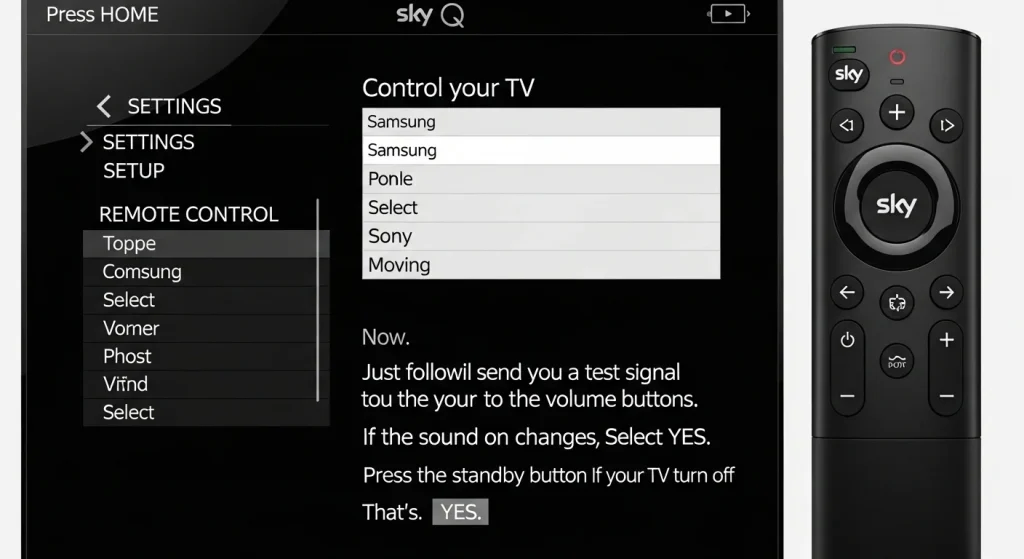
First, press the HOME button on your Sky Q remote. This opens the main menu. Use the arrow buttons to go to SETTINGS. Inside Settings, find and select SETUP. Then, choose REMOTE CONTROL.
Look for the option called Control your TV and select it. Your Sky box will now show a list of popular TV brand names. Scroll through and find the brand of your television, like ‘Samsung’ or ‘Sony’. Select your brand.
Now, just follow the simple instructions on your screen. The Sky box will send a test signal. It will ask you to try the volume buttons. Press the volume up or down on your Sky remote. If the sound on your TV changes, select YES on the screen. Next, it will test the power button. Press the standby button on your Sky remote. If your TV turns off, select YES again. That’s it! Your remote is now set up.
Manual Setup When Auto Setup Fails
Sometimes, the automatic method might not find the perfect signal for your specific TV model. If this happens, don’t worry. The manual setup is here to help.
You begin at the same place: Settings > Setup > Remote Control > Control your TV. Choose your TV brand from the list as before. This time, instead of just testing one signal, your Sky box will start cycling through many different codes for that brand.
Keep watching your TV and listening to the sound. The screen will ask, “Is the sound on?”. You should hear your TV’s normal sound. The system will then try to mute the TV. As soon as you hear the sound go quiet, press the SELECT button on your Sky remote immediately. This tells the box, “Yes, that’s the right code!”
If you miss it, or the sound doesn’t mute, wait a moment. The box will try another code. Once you successfully confirm the mute, the box saves that code. You can now test the volume and power buttons yourself to make sure everything works perfectly.
How to Get a Sky+ HD Remote to Control Your TV
If you have an older Sky+ HD box, the method to get your remote to control the TV is different but still simple. Many users in the UK still have these boxes, and this process works perfectly.
First, find the TV button at the top of your Sky+ HD remote. Press it once. Now, press and hold down the SELECT button and the bright RED button together. Keep holding them for about two seconds. You will see the small red light on the remote flash. This means it’s in learning mode.
Now you need to tell it a special code for your TV brand. You can find a list of these codes on the Sky website or in your Sky manual. For example, a common code for LG TVs is ‘0056’. Using the number pad on your remote, carefully enter the four-digit code for your television.
If you entered the code correctly, the red light on the remote will flash twice quickly. This is your confirmation that it worked! Now, press the TV button again to lock in this setting. The final step is to test it. Try pressing the volume up button. If the volume on your TV increases, you have done it right. Also try the standby button to turn your TV off and on.
Some TVs might need you to try a few different codes from the list for their brand. If the first code doesn’t work, just repeat the steps with a different one until you find the winner.
How to Get Sky Glass Remote to Control Your TV
Sky Glass is different because the TV and the Sky service are built into one device. The Sky Glass remote uses Bluetooth to talk to the TV, so it controls it straight away—no setup needed for basic functions.
However, you might want your Sky Glass remote to control the volume on a separate soundbar or control another TV you’ve connected. Here’s how.
First, press the Settings button on your Sky Glass remote (it looks like a cog). Go to Remote & Accessories. If your remote isn’t already listed, choose ‘Pair a New Remote’ and follow the instructions on the screen.
To control another device’s volume or power, stay in the Remote & Accessories menu. Look for ‘Set up device control’ or a similar option. The system will ask what type of device (like a soundbar) and the brand. It will then guide you through a simple pairing process.
Sky Glass also supports a clever feature called HDMI-CEC. If you plug in a games console or Blu-ray player with a compatible HDMI cable, the Sky Glass remote might automatically control it too. For older TVs used as a display, the remote might use an infrared (IR) blaster, similar to the Sky Q method.
Supported UK TV Brands & Compatibility
Almost all TVs available in the UK can be controlled by a Sky remote. The table below shows how well some of the most popular brands work.
| TV Brand | Compatible with Sky Remote? | Best Setup Method | Common Issues |
|---|---|---|---|
| Samsung | Yes | Automatic (Sky Q) / Manual Code | Small delay sometimes. |
| LG | Yes | Automatic (Sky Q) / Manual Code | Works with almost all models. |
| Sony | Yes | Automatic (Sky Q) / Manual Code | HDMI-CEC can sometimes interfere. |
| Panasonic | Yes | Automatic or Manual | Very reliable connection. |
| Hisense | Mostly Yes | Try Auto first, then Manual | May need a specific model code. |
| Philips | Mostly Yes | Often Manual Code | Check the code list carefully. |
| TCL | Mostly Yes | Automatic or Manual | A newer brand that usually works well. |
If the ‘Automatic’ method doesn’t work, switch to the ‘Manual’ code method explained earlier. A ‘small delay’ is normal and means the volume might change a moment after you press the button. ‘HDMI-CEC interference’ can usually be fixed by turning off the HDMI-CEC setting on your TV if you have problems.
Sky Remote Not Controlling TV? Common Problems & Fixes
Sometimes, things don’t work perfectly the first time. Here are the most common problems people face and how to solve them.
Volume Buttons Not Working
If your Sky remote changes channels but the volume buttons do nothing, the TV control setup has likely failed or been lost. The first fix is to re-run the TV control setup. Go back into your Sky menu (Settings > Setup > Remote Control) and follow the steps again.
Also, check your TV’s own audio settings. Make sure the sound is set to come from the TV speakers, not an external sound system. If you have HDMI-CEC enabled on your TV, try turning it off temporarily in your TV’s menu. Then run the Sky remote setup again.
Power Button Not Working
When the volume works but the power (standby) button doesn’t turn your TV on or off, it usually means the TV code is slightly wrong. The solution is to try another TV code. Run the manual setup again and when it cycles codes, try confirming at a different point. Also, check your TV’s own settings for a ‘remote control power’ option and make sure it is switched on.
Remote Not Responding at All
If your Sky remote does nothing—not even changing Sky channels—the issue is with the remote itself. First, replace the batteries with new ones. If it still doesn’t work, you can reset it. On a Sky Q remote, press and hold the 7 and 9 number buttons together for five seconds until the light flashes. On a Sky+ HD remote, hold TV, SELECT, and RED until it flashes. Then, you will need to pair it to your box again or redo the TV setup.
How to Reset Your Sky Remote and Set It Up Again
Resetting your Sky remote clears its memory and is a great fix for stubborn problems like lag, wrong buttons working, or it not responding at all.
For a Sky Q remote, the reset is done through the menu. Go to Settings > Setup > Remote Control. You should see an option for Reset Remote. Select it and confirm. This will wipe its TV settings. You must then go back and run the ‘Control your TV’ setup from the beginning.
For a Sky+ HD remote, press and hold the TV button. While holding it, also press and hold the RED and SELECT buttons. Keep holding all three until the red light on the remote flashes twice. This resets the TV control part. You then need to enter a new TV brand code, as shown in section 4.
Resetting fixes problems by giving you a clean slate. After a reset, just follow the setup steps for your box again.
FAQs – Getting Sky Remote to Control TV (UK)
Can a Sky remote control any TV in the UK?
It can control almost every TV. A few very old or unusual brands might not work, but all major brands like Samsung, LG, Sony, and Panasonic are fully compatible.
Why won’t my Sky remote change TV volume?
This usually means the TV control setup didn’t save properly. The best fix is to go back into your Sky menu (Settings > Setup > Remote Control) and run the ‘Control your TV’ setup again from the start.
Can a Sky remote control soundbars?
Yes! You don’t set this up as a TV. Instead, go to your Sky Settings, then Audio or Sound settings. Look for an option to ‘Control soundbar’ or ‘Set up external audio’. Follow the on-screen guide there.
Do I need my TV remote to set up my Sky remote?
No, that’s the best part! You can do the entire setup using only your Sky remote and the menus on your Sky box or TV screen.
Does the Sky remote work with smart TV apps like iPlayer?
No. The Sky remote is designed to control your Sky box and your TV’s basic functions (power, volume, input). To navigate apps like Netflix or BBC iPlayer on your smart TV, you will need your TV’s original remote.
Conclusion
Getting your Sky remote to control your TV is a simple task that makes watching TV much more convenient. In just a few minutes, you can stop juggling two remotes and use just one for everything.
If your first attempt doesn’t work, don’t give up. Simply re-run the setup steps from your Sky menu or try the manual code method. Remember, the vast majority of TVs in the UK work perfectly with Sky remotes.
Enjoy the simplicity of single-remote life! If you still have trouble, try resetting your remote or checking the troubleshooting tips in this guide.
Related Post Must Read About:
- How to Access Free Sky Glass Username and Password for Firestick APK
- Unlock Free IPTV Channels on Sky Glass: A Complete Guide
- How to Get Free Sky Glass Firestick Code: Your Ultimate Guide
- How to Get Sky Glass Downloader Code for Free: Everything You Need to Know
- Unlocking Free Sky Glass Username and Password: A Comprehensive Guide
- Sky Glass Remote App for iPhone: Your Ultimate Guide
- How to Access Free Sky Glass Username and Password for Firestick APK
- Unlocking Free Sky Glass TV: A Comprehensive Guide
- How to Get Free Sky Glass Username and Password and Sky Glass Downloader Code
- Sky Glass Remote Buttons Not Working
- How Do I Program My Sky Remote to TV
- Sky Glass TV Remote App
- How to Connect Sky Remote to Your TV
- How to Set Sky Remote for TV
- How to Set Up Sky Remote With TV
