
How Do I Connect a Sky Remote to My TV? (Easy UK Guide)
Many people in the UK find their Sky remote won’t change the TV volume or turn the TV off. This is a common problem with a simple fix. Connecting your Sky remote to your TV is important because it makes life much easier. You can use one remote to control both your Sky box and your television.

This guide helps you with all types of Sky remotes, like the Sky Q Voice remote and older Sky+ remotes. It also works with most TVs from brands like Samsung, LG, and Sony. We will show you two easy ways to connect them: an automatic search and a manual code entry. You will also learn quick fixes if something goes wrong. Let’s solve this common problem together.

With more than 12 years of hands-on experience in satellite television, Freeview systems, and UK broadcast technology, Daniel focuses on helping users choose the right satellite receivers, tune Freeview channels, and solve common signal and setup issues across the UK.
 Add as a preferred source on Google
Things to Check Before You Start
Before you connect your remote, make sure you have a few things ready. First, check that your Sky box is plugged in and turned on. The lights on the front should be on. Next, find your Sky remote. Make sure you know if it’s a Sky Q remote or an older Sky+ remote.
Your remote needs good batteries to work properly. Open the battery cover and check them. If the batteries look old, put in new ones. Also, turn your television on. You need the TV on for the setup to work. Finally, make sure you can point the remote directly at the TV with nothing in the way. This clear path is called “line-of-sight.”
Which Sky Remote Are You Using?
You need to know which Sky remote you have. The setup steps are slightly different for each type. Look at your remote. Does it have a blue microphone button? That is a Sky Q Voice Remote. You can talk to it.
Does it have a smooth, black touchpad at the top? That is a Sky Q Touch Remote. You swipe the pad to move around. Does it have lots of numbered buttons and a blue Sky button? That is probably an older Sky+ or Sky HD remote.
The Sky Q remotes (Voice and Touch) set up through the TV’s menu. The older Sky+ remotes use a different method with number codes. Knowing your remote type helps you follow the correct steps.
Connect Sky Remote to TV Automatically
For Sky Q Voice and Touch remotes, the automatic method is easiest. First, press the Home button on your Sky Q remote. Use the arrows to go up to Settings and press Select. Inside Settings, find and choose Setup.
Now, select Remote Control. On the next screen, choose TV. You will see an option called Find It For Me. Select this. Your Sky box will now search for the right signal for your TV. Wait patiently while it searches. It sends lots of signals until your TV responds.
Finally, the screen will ask you to test it. Point your Sky remote at the TV and press the volume up button. If the volume goes up, press Yes on the screen. Then test the power button. If it turns the TV off, press Yes again. You are all done!
How auto-detection works
When you pick “Find It For Me,” your Sky box does a clever search. It knows a big list of codes that tell different TVs what to do. It sends these codes from your remote, one after another, very quickly.
It is like the remote is saying “Is this your code?” to the TV. First, it tries codes for turning the TV off. When your TV finally switches off, the box knows it found the right “off” code. Then it searches for the right “volume up” code the same way. When both work, it saves them. Your remote will use those saved codes every time you press those buttons.
Manual Setup Using TV Brand
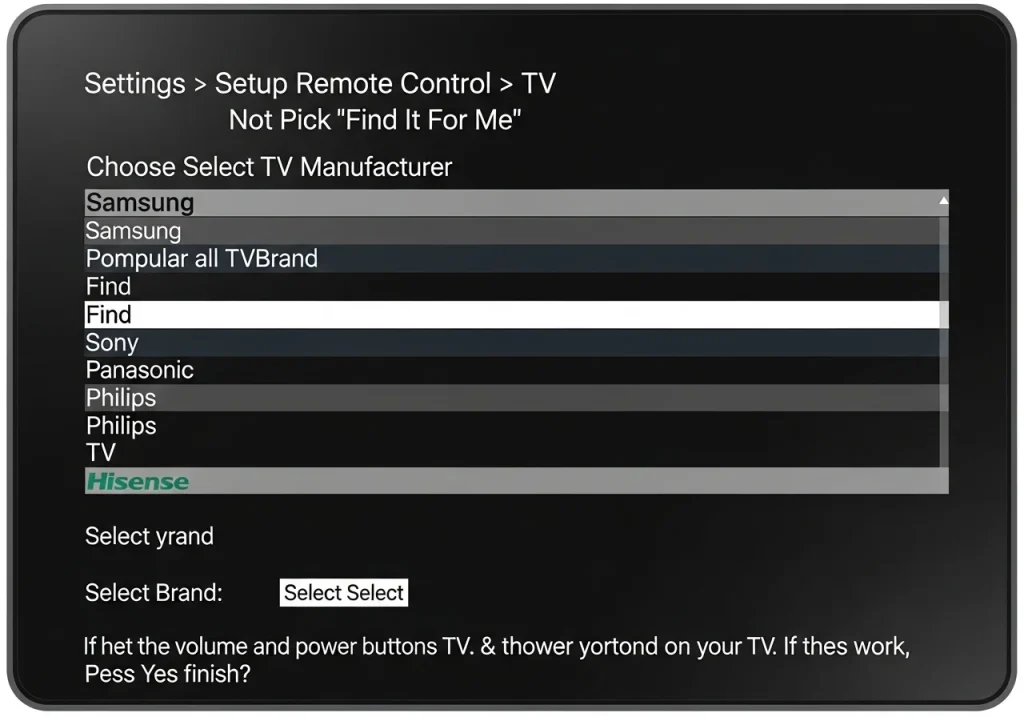
If the automatic search does not find your TV, use the manual method. Start the same way: Settings > Setup > Remote Control > TV. Do not pick “Find It For Me.” This time, choose Select TV Manufacturer.
A big list of TV company names will appear. Find your TV’s brand on the list. Popular UK brands are all there, like Samsung, LG, Sony, Philips, Panasonic, and Hisense. Select your brand. The box might show a number code. If it does, just press Select to try it. The box will then ask you to test the volume and power buttons on your TV. If they work, press Yes to finish.
Mention popular UK TV brands
Most televisions in UK homes come from a few main companies. Samsung and LG are very common for smart TVs. Sony and Panasonic are also very popular. You will also find many TVs from Philips and Hisense.
When you choose your brand from the manual list, you help your Sky box narrow down its search. Instead of trying every code for every TV in the world, it only tries the codes known to work for, say, Sony TVs. This makes finding the correct signal much faster and more likely to succeed.
Sky Remote TV Codes (UK Brands)
Sometimes, for older TVs, you might need to type in a specific number code. Here are some common codes for major UK brands. Remember, different TV models sometimes need different codes.
- Samsung: 0206
- LG: 0226
- Sony: 0001
- Philips: 0222
- Panasonic: 0225
- Hisense: 1138
You usually only need these codes for older Sky+ remotes or if the menu setup fails. The automatic “Find It For Me” option is always the best first step. It is easier and uses the most up-to-date codes.
Sky Remote Not Working With TV?
Is your remote still not controlling the TV? Try these simple fixes. If the volume buttons do nothing, the first thing to do is replace the batteries. Old batteries are the number one cause of problems.
If the power button won’t turn the TV off, try the setup again. Go back to Settings > Setup > Remote Control > TV and run the “Find It For Me” search once more. Sometimes the connection gets lost.
Check the IR sensor position on your TV. Make sure no books, toys, or decorations are blocking the little dark plastic window on the TV frame. You need a clear path. If the remote is totally unresponsive, try a restart of your Sky box. Unplug it from the wall, wait 60 seconds, and plug it back in.
Volume buttons not working
If only the volume control fails, check these things. First, always point the remote at the television when you change the volume, not at the Sky box. The volume signal goes straight to the TV.
Look at your TV’s front. Can you see the small infrared (IR) sensor? It is a tiny dark plastic window. Wipe it gently with a cloth in case dust is blocking it. Make sure no objects on your TV stand are in front of it. Finally, go back into the remote setup menu. Choose TV and then Change Settings. You can re-run just the volume part of the setup.
Reset Your Sky Remote
If your remote is acting strange, a reset can help. This clears its memory so you can start again. Here is how. Find the number 7 and number 9 buttons on the remote. Press and hold them both down together.
Keep holding them for about five seconds. You will see the small light near the top of the remote flash. Let go of the buttons. The reset is complete. Now, you need to reconnect the remote to your Sky box. Follow the simple instructions on your TV screen. After that, you must pair it with your TV again using the automatic or manual setup steps.
Does Sky Remote Work With All TVs?
Sky remotes work with almost all TVs sold in the UK. All modern smart TVs from the big brands are supported. Many older TVs work too, especially if you use the manual code method.
The remote can also often control other devices. You can sometimes set it up to change the volume on a soundbar or an AV receiver instead of your TV. The main limitation is with very old or unusual TV brands. If your TV is more than 10-15 years old, it might need a specific code, but it will often still work.
Tips for a Smooth Setup
Follow these tips for an easy connection. Always keep a direct line-of-sight between your remote and the TV during setup and when using volume/power. Do not let anything block the TV’s IR sensor.
Make sure your Sky box software is updated. Updates sometimes improve the remote. Also, use the correct remote model for your box. A Sky Q remote won’t set up the old way, and a Sky+ remote won’t use the on-screen menu. Knowing this saves time.
Sky Remote FAQs
How do I connect my Sky remote to my TV?
For Sky Q remotes, go to Settings > Setup > Remote Control > TV and pick “Find It For Me.” For Sky+ remotes, press TV, then hold Select and 0 until the light flashes, then enter your TV’s code.
Why won’t my Sky remote control volume?
Change the batteries first. Then, make sure you’re pointing the remote at the TV. Finally, re-run the TV setup from the Settings menu.
Can one Sky remote control two TVs?
No. One remote is paired to one Sky box, which is connected to one television.
How do I reset a Sky remote?
Hold the 7 and 9 buttons together for five seconds until the LED flashes. Then re-pair it with your box and TV.
Does Sky remote work without Bluetooth?
Sky Q remotes need Bluetooth to navigate menus. But the power and volume buttons use infrared (IR), which works without Bluetooth.
Conclusion
Now you know how to fix the common problem of a Sky remote not controlling your TV. Always try the automatic “Find It For Me” setup first—it’s the quickest way.
If you hit a problem, simple solutions like new batteries or a reset usually work. You can now enjoy the convenience of using one remote for everything. Sit back, relax, and enjoy your favourite shows.
