
How to Set a Sky Remote to TV (Easy UK Setup Guide)
A Sky remote controls your Sky box, but it can also control your television. This means you can use just one remote to change channels and adjust your TV’s volume or power. Many people in the UK find their volume buttons don’t work or the remote won’t turn their new TV on. This simple guide will help you fix that. We cover all types of remotes, like Sky Q and Sky+ HD. You don’t need to be a tech expert to follow these steps. Let’s get your remote working properly.


With more than 12 years of hands-on experience in satellite television, Freeview systems, and UK broadcast technology, Daniel focuses on helping users choose the right satellite receivers, tune Freeview channels, and solve common signal and setup issues across the UK.
 Add as a preferred source on Google
Types of Sky Remotes Explained
Not all Sky remotes work the same way. It is important to know which one you have.
Sky Q Remote
The Sky Q remote looks modern. Some versions have a touch-sensitive area. This remote uses Bluetooth to talk to the Sky Q box. It also uses an infrared signal, like a normal remote, to control your TV. Its setup happens mostly through the TV screen menus, which is different from older remotes.
Sky+ HD Remote
Most people with a Sky+ HD box have this remote. It only uses infrared light. You must point it at your TV for it to work. To make it control your TV, you need to type in a special number called a TV code. It doesn’t pair automatically.
Older / Standard Sky Remotes
These are the older, chunkier remotes. They also use infrared and need a TV code to be programmed. They have fewer buttons but are still very common. The setup steps for these are similar to the Sky+ HD remote.
What You Need Before Setting Up Your Sky Remote
Get these things ready first. Make sure your Sky box is plugged in and turned on. Your TV should also be switched on. You need to know if you have a Sky Q, Sky+ HD, or standard remote. If you have an older remote, you must point it directly at the TV. Check the remote has fresh batteries. Weak batteries can cause problems during setup.
How to Set a Sky Q Remote to Your TV (Step-by-Step)
Follow these easy steps to pair your Sky Q remote with your television.
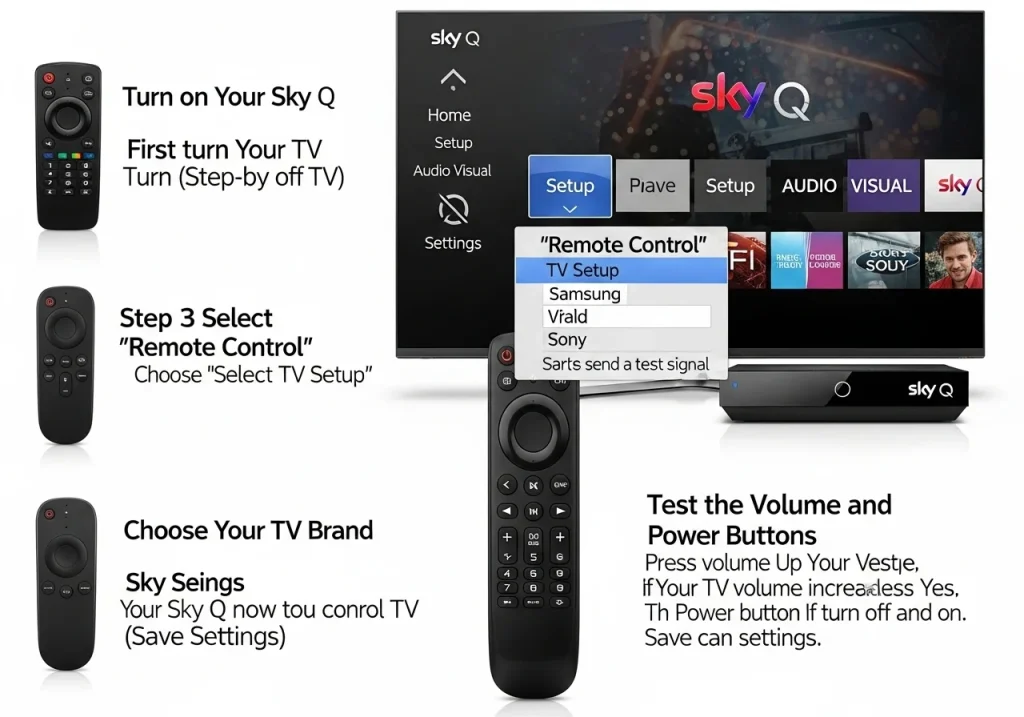
Step 1: Turn on Your TV and Sky Box
First, use your TV’s own remote to turn it on. Then, check your Sky Q box is also on. You should see the Sky home screen on your TV.
Step 2: Open Sky Settings
Press the Home button on your Sky Q remote. This brings up the main menu. Use the arrows to go to Settings. Then, select Setup and choose Audio Visual.
Step 3: Select “Remote Control”
In the Audio Visual menu, find and select Remote Control. Then, choose the option that says TV Setup. This starts the process.
Step 4: Choose Your TV Brand
A list of TV brand names will appear. Find your TV’s brand, like Samsung or Sony, and select it. The Sky box will now send a test signal.
Step 5: Test the Volume and Power Buttons
A message will ask you to test the volume. Press the volume up button on your Sky remote. If your TV volume increases, press Yes. Then, test the power button. If it turns your TV off and on, press Yes again.
Step 6: Save Settings
After a successful test, save the settings. Your Sky Q remote now controls your TV. You can leave the menu.
How to Set a Sky+ HD Remote to Your TV (Manual Method)
This method uses a code. You need to find the right code for your TV brand.
Step 1: Find Your TV Brand Code
You need a special 4-digit code for your TV. Search online for “Sky remote codes UK” and your TV brand (e.g., “LG Sky remote code”). Sky also provides official code lists. Write down a code for your brand.
Step 2: Put the Remote in Setup Mode
Turn your TV on. Point your Sky+ remote at the TV. Press and hold the Select button and the Red button together. Hold them for about two seconds until the red light on the remote flashes.
Step 3: Enter the TV Code
Quickly type the 4-digit code you found. The red light on the remote will flash twice if the code is accepted. If it doesn’t flash, you may have entered it too slowly.
Step 4: Test Volume and Power
Now, press the TV button at the top of the remote. Try to change the volume or turn the TV off with the power button. If it works, you’re done! If not, repeat the steps with a different code for your brand.
Step 5: Lock the Code
Once the remote works, press the Select button to save the code. The red light will flash twice again to confirm. You can now use the remote normally.
How to Set a Sky Remote Without a Code (Alternative Method)
If you cannot find a code, you can make the remote search for one.
Turn your TV on. Point the Sky remote at it. Hold down Select and the Red button until the light flashes. Then, immediately press and hold the TV button. The remote will start its search. The TV will turn off when it finds a working signal. Then, quickly press Select to save that code. Test the volume. This method can take a few tries, so be patient.
Common Problems and Fixes (UK Users)
Sometimes, things don’t work perfectly. Here are common fixes.
Sky Remote Not Controlling TV Volume
First, check you used the correct code for your UK TV brand. Try the setup steps again. Often, putting in new batteries fixes the problem. Weak batteries make the infrared signal too weak.
Sky Remote Power Button Not Working
This is often a signal issue. Make sure nothing blocks the path between the remote and the TV. Some very old TVs might not be compatible. Try the code search method again with a different code.
Sky Q Remote Not Responding at All
Try a reset. Take the batteries out of the remote. Unplug your Sky Q box from the power for two minutes. Plug it back in, wait for it to restart, then put the batteries back in. This can re-establish the Bluetooth connection.
Sky Remote Works with Box but Not TV
Remember, the remote controls the Sky box and TV separately. If the TV buttons don’t work, you only need to re-program the TV control part. Follow the TV setup steps for your remote type again. Always press the TV button first before trying to change volume or power.
How to Reset a Sky Remote
A reset clears all settings and starts fresh. For a Sky Q remote, remove the batteries, unplug the Sky box for 2 minutes, then reconnect everything. For a Sky+ HD remote, hold the Select and Red button until the light flashes, then type 999. This clears the old TV code. Now you can try a new setup. Use a reset if your remote is very confused.
Tips for UK Sky Users
Use the Help section on your Sky TV. It has useful guides. Keep your TV’s software updated through its own settings menu. Sky remotes work best with popular UK brands like Samsung, LG, and Sony. If you have a very old remote, think about buying a replacement from Sky.
Frequently Asked Questions (FAQ)
Can one Sky remote control any TV in the UK?
Almost any TV with an infrared sensor can work. You just need the correct setup code for that brand.
Does Sky Q remote work with smart TVs?
Yes. The setup process is the same. It controls the basic functions like power and volume on a smart TV.
Why won’t my Sky remote turn the TV on or off?
The most common reason is an incorrect or lost TV code. Reprogram the remote using the steps above.
Do Sky remotes work with soundbars?
No, Sky remotes are designed to control your TV and Sky box. You usually need a separate remote for your soundbar.
Can I control TV volume using Sky Glass remote?
Sky Glass uses one remote for everything, so you won’t have this setup problem.
Conclusion
Setting up your Sky remote to control your TV is usually quick and easy. First, find out which remote you have. Then, follow the right steps for Sky Q or Sky+ HD. If you have problems, try resetting the remote or pairing it again. If nothing works, you can always contact Sky customer support for help. Now, sit back and enjoy using just one remote!
Related Post:
- How to Open Your Sky Glass Remote Control
- Sky Glass Remote App for iPhone
- How to Access Free Sky Glass Username and Password for Firestick APK
- How to Access Free Sky Glass Username and Password for Firestick APK
- Unlock Free IPTV Channels on Sky Glass
- How to Get Free Sky Glass Firestick Code
- Unlocking Free Sky Glass Username and Password
- How to Get Sky Glass Downloader Code for Free
- Access Sky Glass for Free
- How to Use Sky Glass Without a Remote
- Unlocking Free Sky Glass TV
